Amazon Selling Partner Store Configuration
Configuring the Selling Partner Store in ILS, you need to register an app in Amazon Developer Portal.
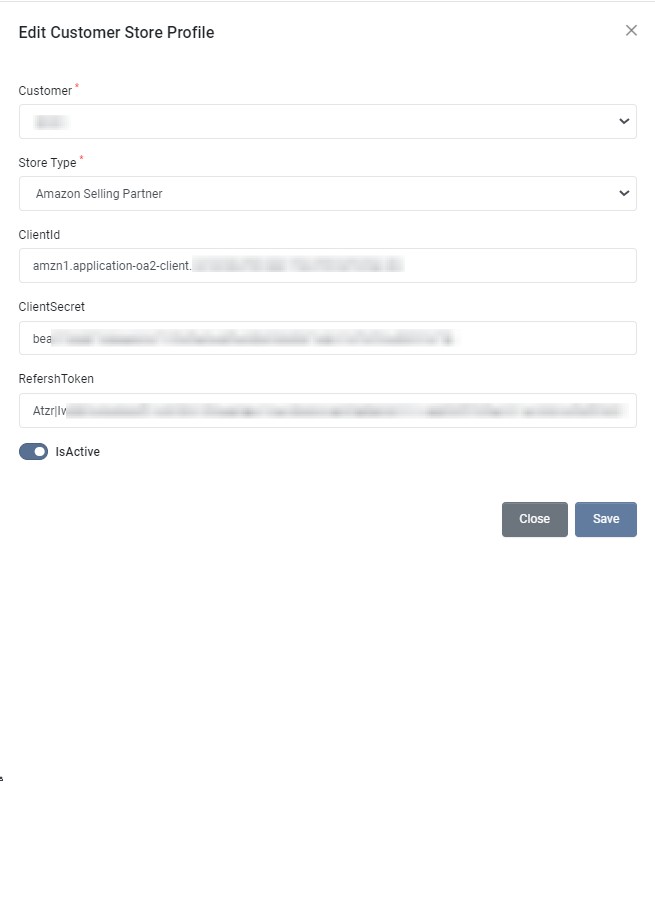
| Field | Required | Description |
|---|---|---|
| Customer | Select the Customer. By default, user logged in customer account is selected. | |
| Store Type | Select store type as Amazon Selling Partner | |
| ClientId | Get Client Id, as mentioned in View your Application Information and Credentials | |
| ClientSecret | Get Client Secret, as mentioned in View your Application Information and Credentials | |
| RefreshToken | Get the refresh token, as mentioned in View your Application Information and Credentials | |
| IsActive | Choose whether this profile is active. | |
| MatchSplitQty | Choose whether match split quantity is enabled. | |
| Product Sync | Choose whether Store Product to ILS sync is enabled for this profile. | |
| Inventory Sync | Choose whether automatic inventory sync from ILS to Store is enabled for this profile. | |
| Order Sync | Choose whether automatic store order import to ILS is enabled for this profile. | |
| Order Acknowledge | Choose whether automatic store order acknowledgement is enabled for this profile. | |
| Shipment Status Sync | Choose whether automatic order shipment status and tracking number sync is enabled for this profile. | |
| Request Label | Choose whether to request dropship labels for this profile. |
Register as a developer
The Developer Profile collects your organization’s contact information, information about the data you require in Amazon Services APIs, and security and use information to ensure your compliance with Amazon’s Acceptable Use Policy, Data Protection Policy, Developer Agreement, and access requirements.
After you complete the Developer Profile, Amazon will evaluate your information and create a case with next steps. You might be asked to provide additional information or documentation, so you must complete all fields truthfully and accurately.
- Sign in to Seller Central. For regional URLs, refer to Seller Central URLs.
- Open the menu, select Partner Network, then choose Develop Apps.
- If you have not yet completed a Developer Profile for your selling account, choose Proceed to Developer Profile. Otherwise, choose View profile.
- Complete the developer registration form.
- Enter your Contact Information.
- Enter Data Access details.
- From the Data Access dropdown, choose Private Developer: I build application(s) that integrate my own company with Amazon Services APIs.
- If you are currently a developer, you must provide all of your organization's developer IDs, separated with commas.
- Select the Roles that apply to your organization. For more information about Role definitions, refer to Roles in the Selling Partner API.
- Product Listing Role
- Inventory and Order Tracking Role
- Enter your Use Cases.
- Enter your Security Controls.
- Check the box confirming that you have read and agree to the Amazon Services API Developer Agreement, Acceptable Use Policy, and the Data Protection Policy.
- Choose Register.
- Wait for next steps. Case updates will be sent to the admin email address on file. If you are contacted for more information, you must respond within five days to prevent case closure. For more information, refer to Check the status of your request to register as a developer.
Developer Profile Review
The decision to grant or deny Selling Partner API access is made based on the information that you provide in your Developer Profile, including but not limited to your application functionality and your compliance with the Acceptable Use Policy and the Data Protection Policy. We cannot provide detailed information about how we determine Selling Partner API eligibility, but we prioritize data security in these decisions. Refer to Registration recommendations for more policy information.
If you close or do not respond to questions about your case within five days, your case will be resolved and your SP-API access will remain unchanged.
Register your Application
The following procedures show you how to register your application
- Sign in to Seller Central using your developer credentials and navigate to Partner Network and click Develop Apps.
- On the Developer Central page, choose Add new app client.
- Complete the form.
View your Application Information and Credentials
The following procedures show you how to view your application information and credentials.
- Sign in to Seller Central using your developer credentials and navigate to Partner Network and click Develop Apps. The Developer Central page displays information about your application(s).
- Choose View under LWA credentials for the application you want. Your LWA client identifier and client secret for that application appear. You will need these credentials to request an LWA access token.
Rotate your Application's LWA Credentials
As of February 6, 2023, you must rotate your Login With Amazon (LWA) credentials (client secrets) for all applications every 180 days. If you do not update your LWA credentials before your target rotation date, your application will lose access to SP-API.
What is credential rotation?
Credential rotation is the process of periodically updating your client secrets. Regular and timely rotation of Login With Amazon (LWA) credentials limits the duration of your application’s credentials in the event that credentials are exposed or compromised.
Why do you need to rotate the LWA client secret on SP-API application(s)?
Your application’s LWA credentials are like a username and password. Even if you are very careful with your access credentials, you might find yourself in a situation where your credentials have been exposed or compromised. Regular and timely rotation of your LWA client secret help to make your applications more secure by limiting the lifespan of credentials.
Failure to rotate the LWA client secret for your app by the due date will result in the loss of ability to make any API calls. This will directly impact any customers that have authorized your application by restricting critical business functions.
Rotate the Login With Amazon (LWA) credential
- Sign in to your developer account on Seller Central, or Developer Central and navigate to the Developer Console page that lists all your applications.
- From the LWA credentials column, find the expiration alert and select View.
- (Optional) For ease of reference, you can securely store your existing LWA credentials in an encrypted form.
- Choose Rotate secret, read the warning, then choose Rotate secret again.
- View the updated target rotation date on the LWA credentials page.
- Repeat Steps 2 through Step 6 for every application showing an expiration alert.
- After you generate a new LWA credential (client secret), you must update your credentials in ILS store configuration page. Your old credentials expire seven days after you generate new credentials.