Shopify Store Configuration
Configuring the Shopify Store in ILS, you need to create a custom app in Shopify Admin portal.
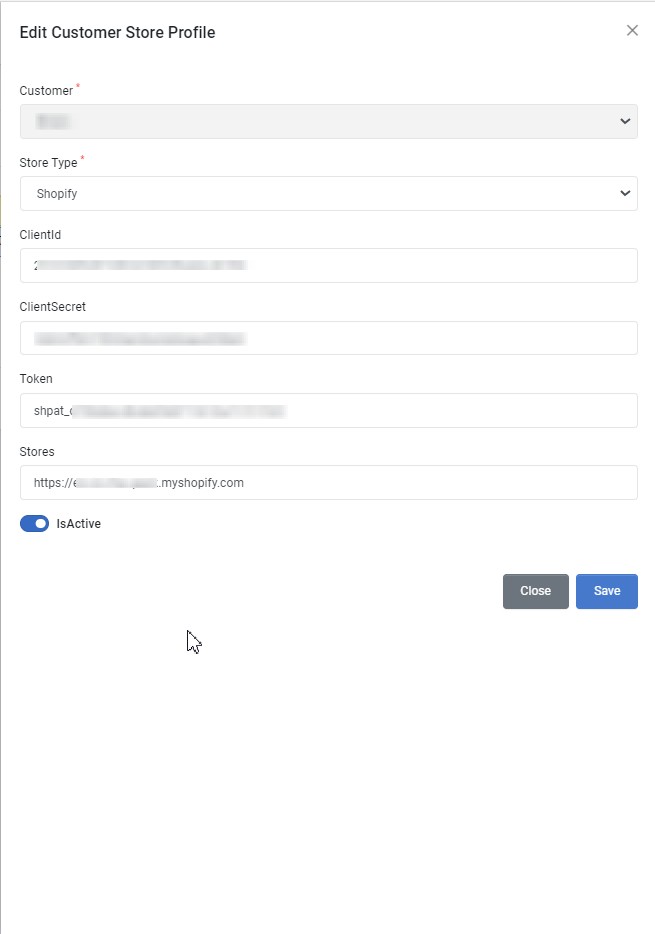
| Field | Required | Description |
|---|---|---|
| Customer | Select the Customer. By default, user logged in customer account is selected. | |
| Store Type | Select store type as Shopify | |
| ClientId | Get Client Id, as mentioned in Get the API credentials for a custom app | |
| ClientSecret | Get Client Secret, as mentioned in Get the API credentials for a custom app | |
| Token | Get the API access token, as mentioned in Install the app and get the API access tokens | |
| Stores | Store Url. ex: https://sample.myshopify.com | |
| IsActive | Choose whether this profile is active. | |
| MatchSplitQty | Choose whether match split quantity is enabled. | |
| Product Sync | Choose whether Store Product to ILS sync is enabled for this profile. | |
| Inventory Sync | Choose whether automatic inventory sync from ILS to Store is enabled for this profile. | |
| Order Sync | Choose whether automatic store order import to ILS is enabled for this profile. | |
| Order Acknowledge | Choose whether automatic store order acknowledgement is enabled for this profile. | |
| Shipment Status Sync | Choose whether automatic order shipment status and tracking number sync is enabled for this profile. | |
| Request Label | Choose whether to request dropship labels for this profile. |
Activate Custom App Development
Before you can create a custom app for your store, you need to activate custom app development. You need to be the store owner or a staff member with the Enable app development permission to activate custom app development.
- Navigate to Shopify Admin Portal.
- Click Settings.
- Click Apps and sales channels.
- Click Develop apps.
- Click Allow custom app development.
- Read the warning and information provided, and then click Allow custom app development.
Create and install a custom app
After you've activated custom app development, you can create and install a custom app in your Shopify admin. You need to set API scopes to determine which parts of your store the custom app can access. After the app is installed, you'll receive access tokens that the app uses to access information from your store using Shopify's APIs.
The store owner, and collaborators and staff members with the relevant permissions, can create and install custom apps.
Create the app
- Navigate to Shopify Admin Portal.
- Click Settings.
- Click Apps and sales channels.
- Click Develop apps.
- Click Create a custom app.
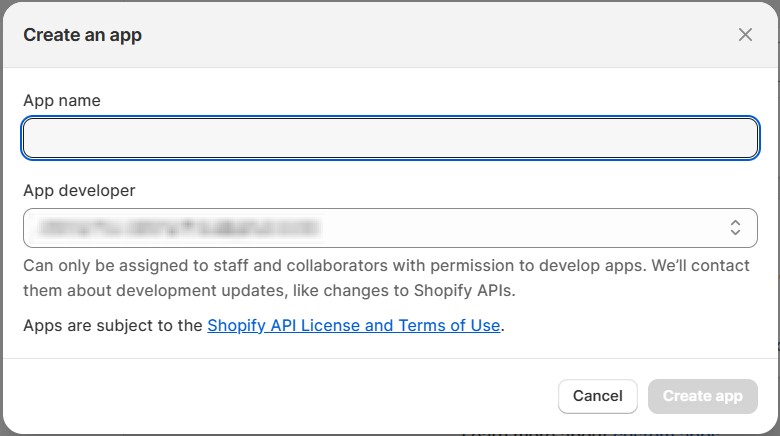
- In the modal window, enter the App name and select an App developer. The app developer can be the store owner, or any staff or collaborator account with the Develop apps permission.
- Click Create app.
Select API scopes
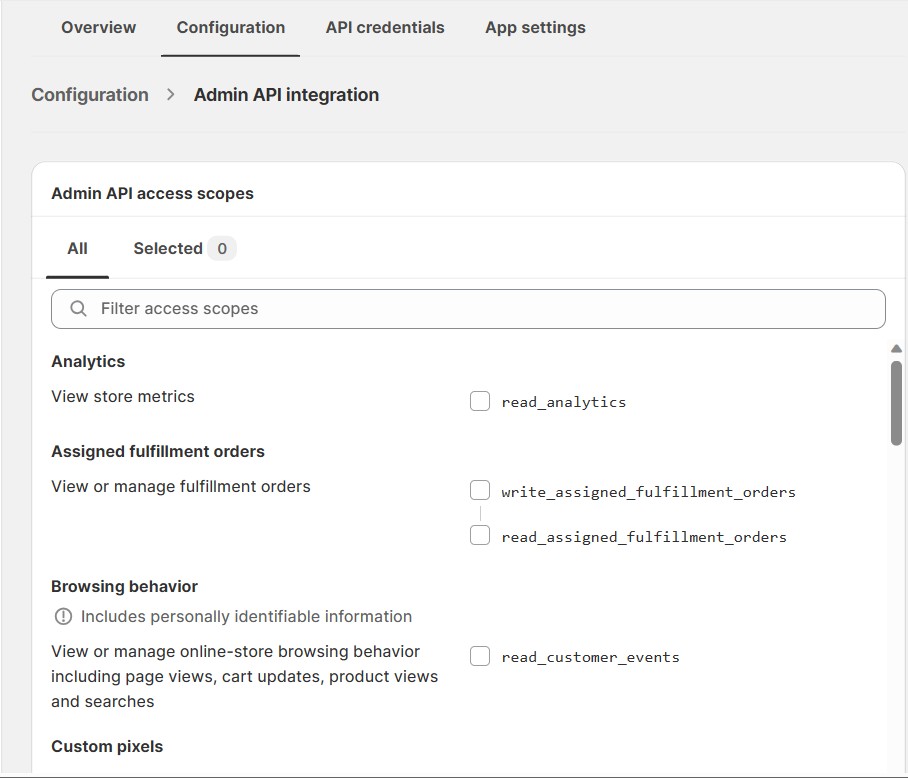
After you create a custom app, you can assign API scopes to it. A custom app can have Admin API scopes, Storefront API scopes, or both, depending on the requirements of the app. You need to select at least one scope before you install the app.
- Click Select scopes.
- In the Admin API access scopes section, select the API scopes that you to assign to the app. Select the following scopes for ILS Integration.
- Order & Shipping Management
- write_assigned_fulfillment_orders
- read_assigned_fulfillment_orders
- write_fulfillments
- read_fulfillments
- write_merchant_managed_fulfillment_orders
- read_merchant_managed_fulfillment_orders
- write_orders
- read_orders
- read_locations
- write_channels
- read_channels
- write_returns
- read_returns
- write_shipping
- read_shipping
- Inventory Management
- write_inventory
- read_inventory
- write_products
- read_products
- Order & Shipping Management
- Optional: Set the API version you want to use for webhook subscriptions.
- Click Save.
Install the app and get the API access tokens
After you've set API scopes for your app, you can install the app. You'll get your API access tokens after you install. Depending on what API scopes you assigned to the app, you'll get an Admin API access token, a Storefront API access token, or both.
- Click Install app.
- In the modal window, click Install app.
- Get the access token:
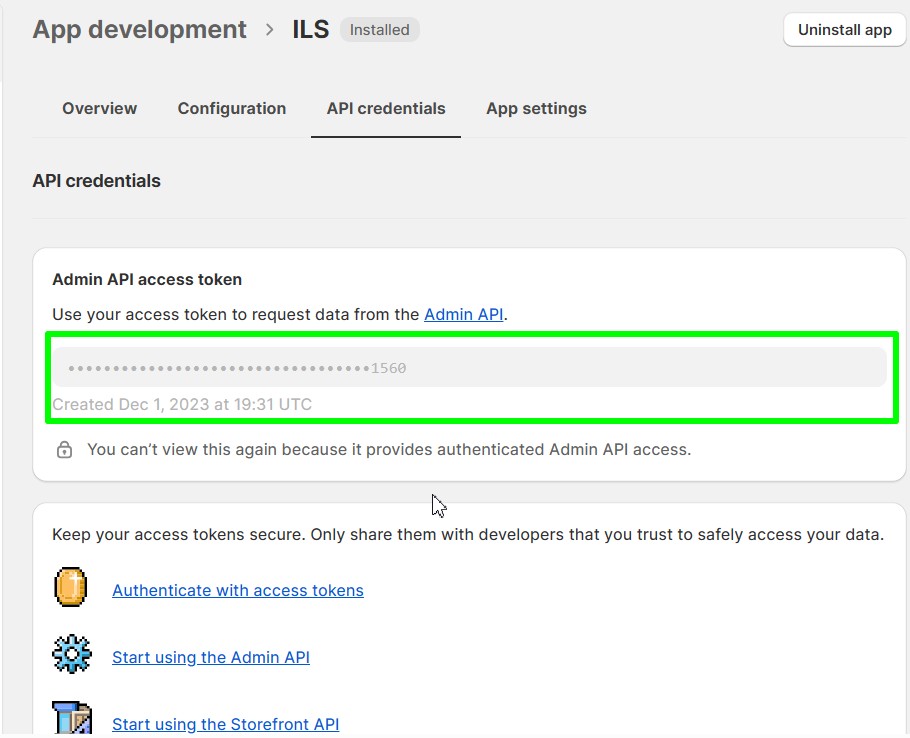
- If you selected Admin API scopes for the app, then go to the Admin API access token section and click Reveal token once. After revealing the full access token the first time this page is accessed, this page displays only the last 4 digits of the access token for reference on subsequent visits.
Get the API credentials for a custom app
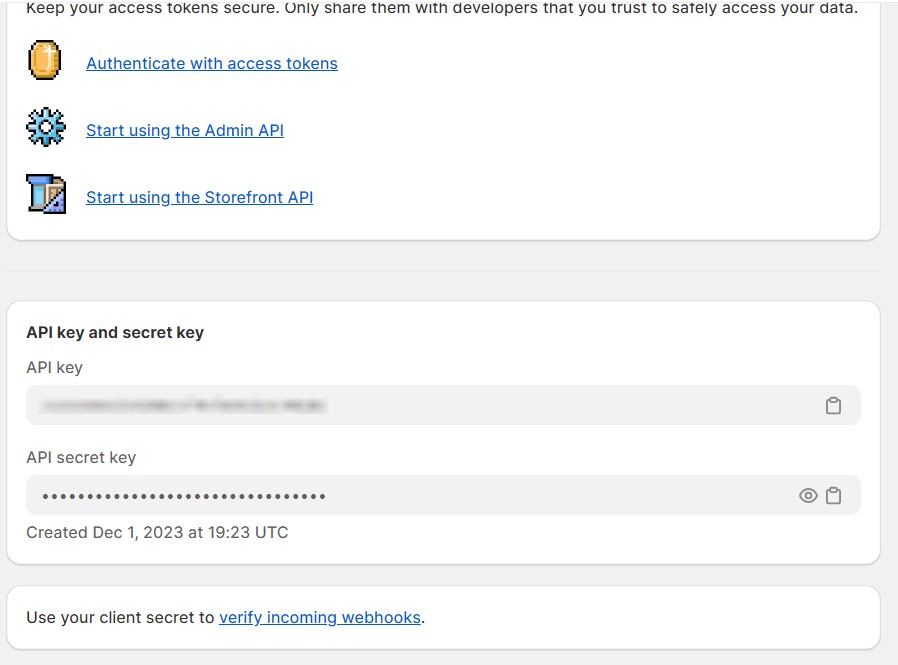
You can check the the API key, and the API secret for a custom app from the app's API credentials page. You can also check the Admin API access token, but after revealing it the first time the page is accessed, you can only check the last four digits of the token.
- Navigate to Shopify Admin Portal.
- Click Settings.
- Click Apps and sales channels.
- Click Develop apps.
- Click the name of the app that you want the credentials for.
- Click API credentials.
Update Admin API scopes for a custom app
If you're a store owner, or a collaborator or staff member with the relevant permissions, then you can update the scopes for a custom app.
- Navigate to Shopify Admin Portal.
- Click Settings.
- Click Apps and sales channels.
- Click Develop apps.
- Click the name of the app that you want to update.
- Click Configuration.
- In the Admin API integration section, click Edit.
- If you haven't previously assigned any Admin API scopes, then click Configure.
- Select the scopes that you want to assign to the app.
- Optional: Set the API version you want to use for webhook subscriptions.
- Click Save.
If the app is installed on the store, then you won't be able to click Save unless at least one scope is selected, or if the app has been assigned Storefront API scopes.
API scope permissions for custom apps
Collaborator and staff accounts can set API scopes for custom apps only if the account has the Develop apps permission, as well as any other staff permissions related to the API scopes that they set.
You should consult with your app's developer to determine which account permissions and API scopes are required for the custom app to work. Make sure that you understand and are comfortable with the permissions that you give to the developer.