Wayfair Store Configuration
Configuring the Wayfair Store in ILS, you need to create a custom app in Wayfair Developer portal.
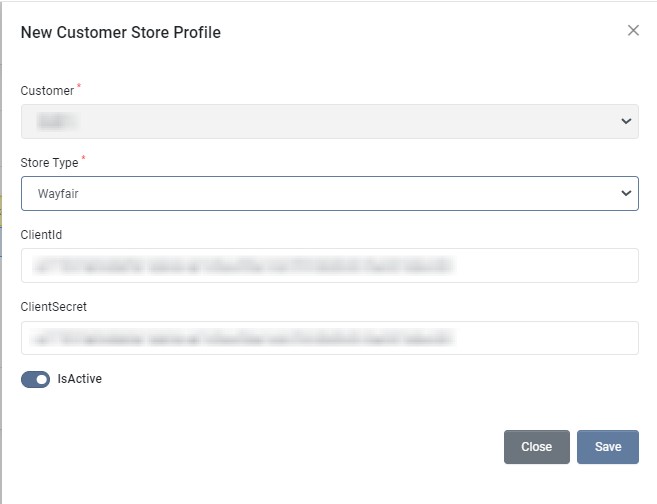
| Field | Required | Description |
|---|---|---|
| Customer | Select the Customer. By default, user logged in customer account is selected. | |
| Store Type | Select store type as Wayfair | |
| ClientId | Get Client Id, as mentioned in Create the app | |
| ClientSecret | Get Client Secret, as mentioned in Create the app | |
| IsActive | Choose whether this profile is active. | |
| MatchSplitQty | Choose whether match split quantity is enabled. | |
| Product Sync | Choose whether Store Product to ILS sync is enabled for this profile. | |
| Inventory Sync | Choose whether automatic inventory sync from ILS to Store is enabled for this profile. | |
| Order Sync | Choose whether automatic store order import to ILS is enabled for this profile. | |
| Order Acknowledge | Choose whether automatic store order acknowledgement is enabled for this profile. | |
| Shipment Status Sync | Choose whether automatic order shipment status and tracking number sync is enabled for this profile. | |
| Request Label | Choose whether to request dropship labels for this profile. |
Create the app
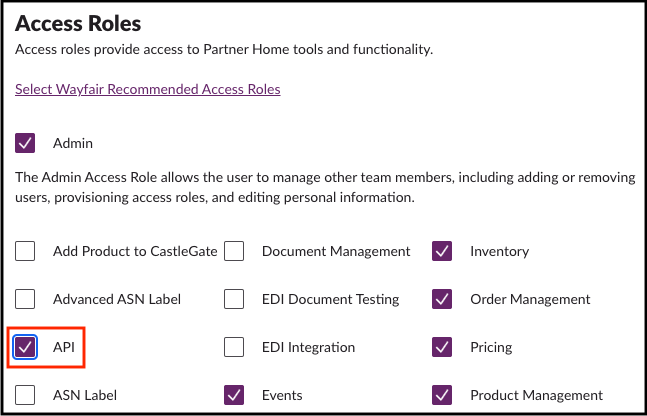
Your first step to integrating with Wayfair APIs is to create Applications to interact with the API endpoint. To do this, you must have a user that has the API access role in Partner Home. The admin user of your account may grant you this access by navigating to the User Management page and editing your user to add the API role:
- Navigate to Wayfair Developer Portal.
-
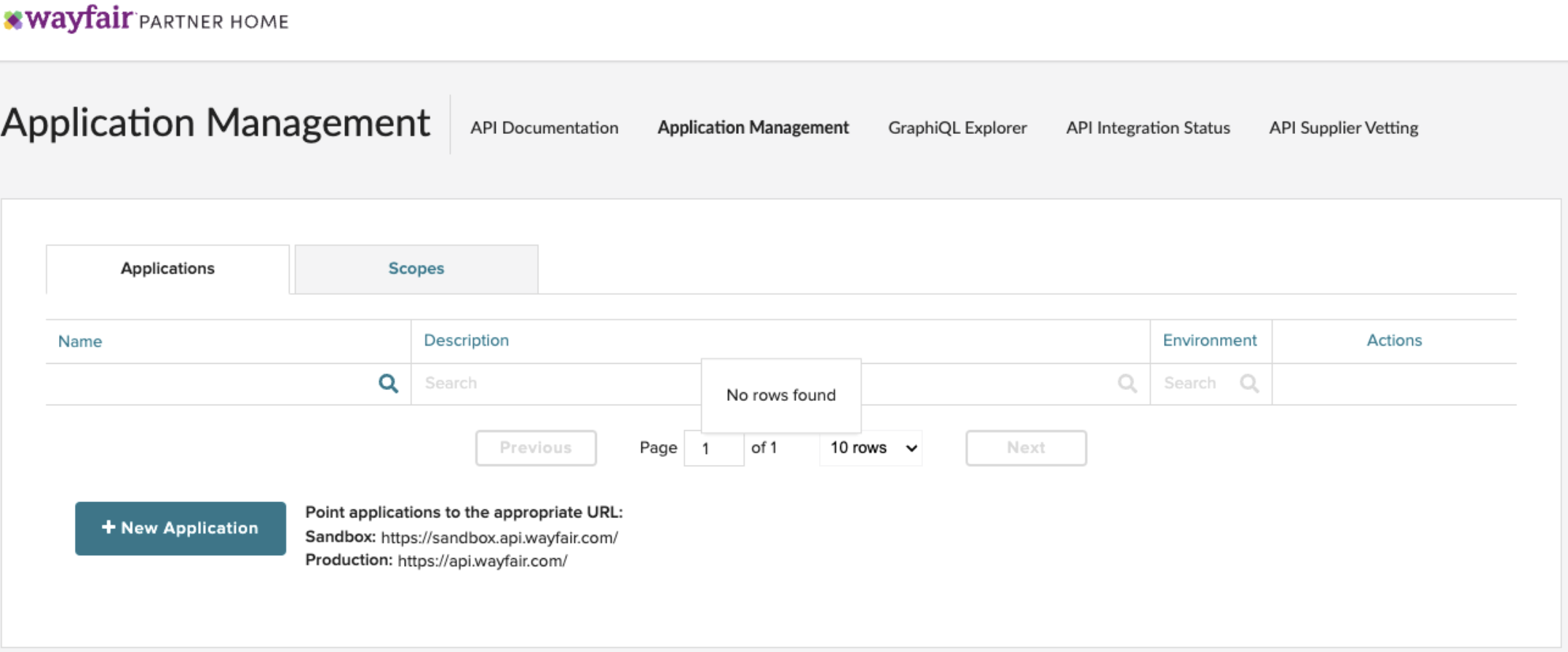
The Application Management tool allows you to create applications to interact with API endpoints. To create a new application, click the "New Application" button and enter the required name and description in the pop-up window.
-
On the screen, you'll find a toggle to switch between
SandboxandProductionenvironments, with Sandbox selected by default. - To create a application, enter the name and description, then click Save.
- Once an application is created, a new pop up window will show up with the Client ID and Client Secret that is then used to generate the token for authentication. This is the only time you can see the Client ID and Secret, so please copy and store them safely.
-
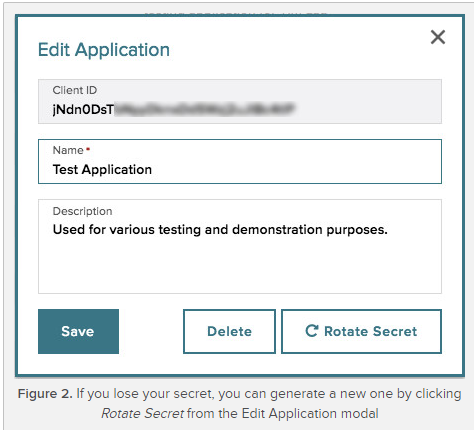
If you lose or have lost the Client Secret, you can generate a new one by clicking on the Edit Application button and then selecting Rotate Secret.
Generating a Client ID and Client Secret
- Navigate to Wayfair Developer Portal.
- Once an application is created, a new pop up window will show up with the Client ID and Client Secret that is then used to generate the token for authentication. This is the only time you can see the Client ID and Secret, so please copy and store them safely.
-
If you have lost the Client Secret, you can generate a new one by clicking on the Edit Application button and then selecting Rotate Secret.