DHL Shipping Profile Configuration
Configuring the DHL Shipping REST API in ILS, you need to create a custom app in DHL Developer portal.
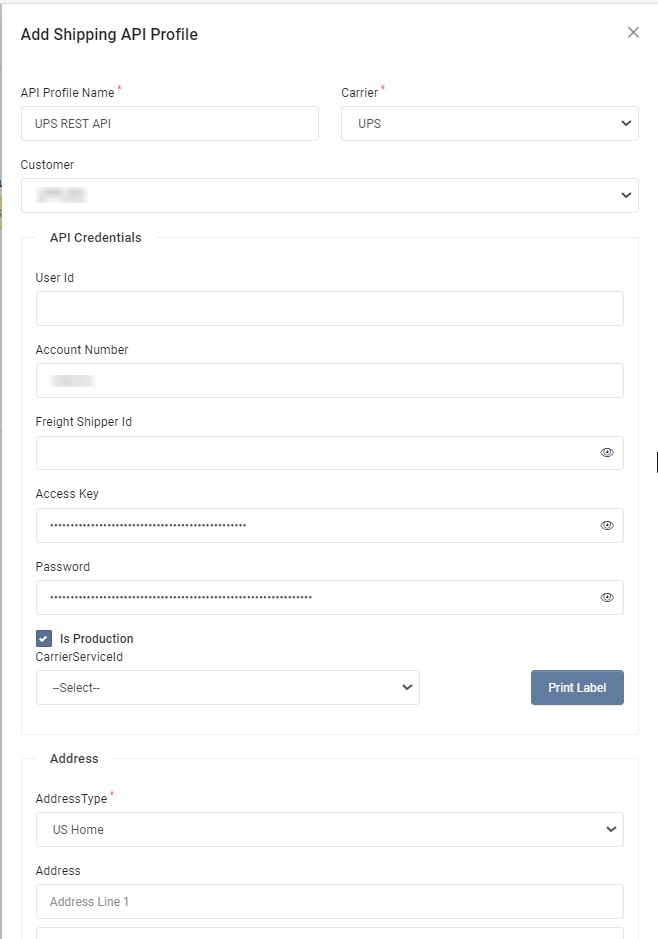
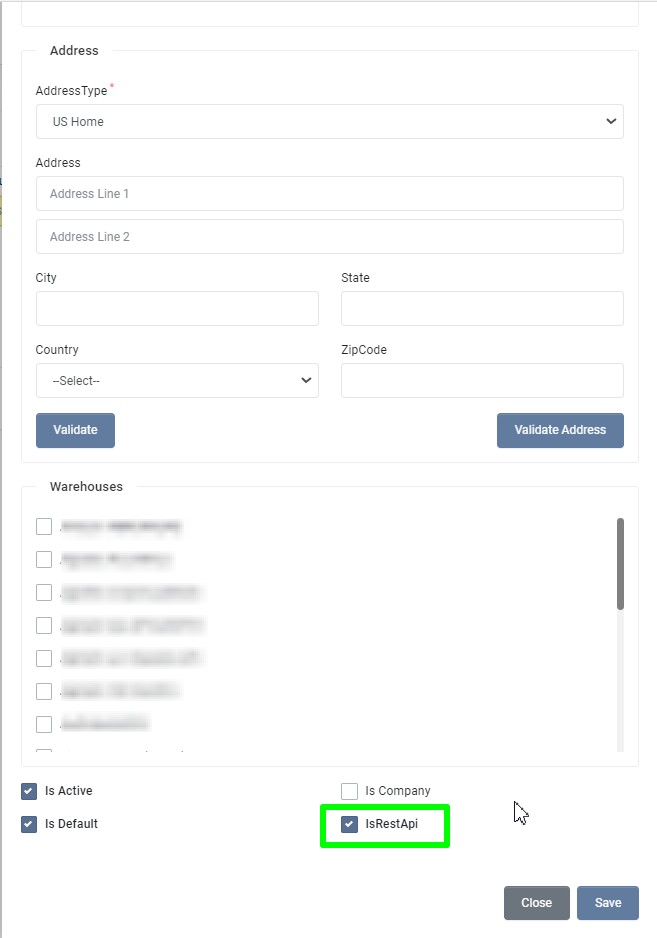
| Field | Required | Description |
|---|---|---|
| API Profile Name | Unique name for the Shipping API profile. | |
| Carrier | Select carrier as DHL | |
| Customer | Select the Customer. By default, user logged in customer account is selected. | |
| Account Number | Get Account Number, as mentioned in Get the API credentials for a custom app | |
| Access Key | Get Client Id, as mentioned in Get the API credentials for a custom app | |
| Password | Get Client Secret, as mentioned in Get the API credentials for a custom app | |
| Name | The contact name to validate the rates and labels APIs. | |
| Company Name | The company to validate the rates and labels APIs. | |
| Address Line 1 | The combination of number, street name. etc of warehouse address. | |
| Address Line 2 | Street address line 2 of warehouse address. | |
| City | The name of city, town, etc of warehouse address. | |
| State | The State or Province codes. The Format and presence of this field may vary depending on the country. | |
| Country | Specify the ISO Alpha2 code of the country. | |
| Zip Code | The Postal Code which is an identification code of a region (usually small) for easier and accurate mail/package delivery. The format and presence of this field may vary depending on the country. | |
| Length | The length value to use for label and rate validation in inches. | |
| Width | The width value to use for label and rate validation in inches. | |
| Height | The height value to use for label and rate validation in inches. | |
| Weight | The weight value to use for label and rate validation in pounds. | |
| Carrier Service | Choose the carrier service to use for label validation. | |
| Address Type | Select address type to use for address validation, rates and labels APIs validation. | |
| Address Line 1 | The combination of number, street name. etc of warehouse address. | |
| Address Line 2 | Street address line 2 of warehouse address. | |
| City | The name of city, town, etc of warehouse address. | |
| State | The State or Province codes. The Format and presence of this field may vary depending on the country. | |
| Country | Specify the ISO Alpha2 code of the country. | |
| Zip Code | The Postal Code which is an identification code of a region (usually small) for easier and accurate mail/package delivery. The format and presence of this field may vary depending on the country. | |
| Is Production | Choose whether this is production or test profile. | |
| Is Active | Choose whether this profile is active. | |
| Is Company | Choose whether this profile is company profile. | |
| Is Default | Choose whether this profile is default profile. | |
| Is Rest API | Check this for DHL REST. | |
| Save Logs | Choose whether to save request and response for debugging. | |
| Skip Rate Shopping | Check if this profile doesn't support rate shopping. |
Create the app
- Navigate to DHL Developer Portal.
- Click My Apps.
- Click Create App.
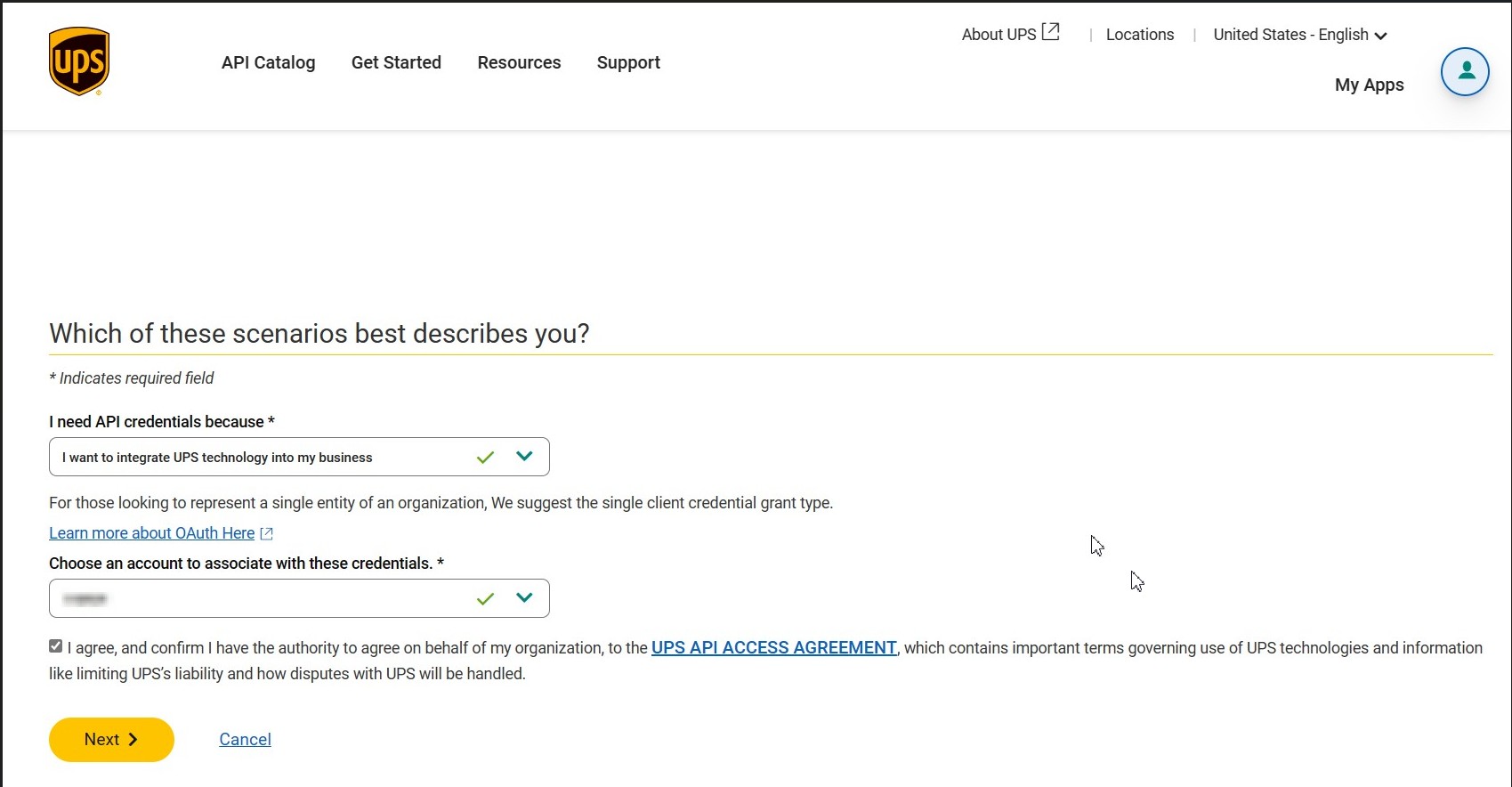
- Select the usage and shipping account number to associate with the app.
-
Click Next.
-
Fill the contact information.
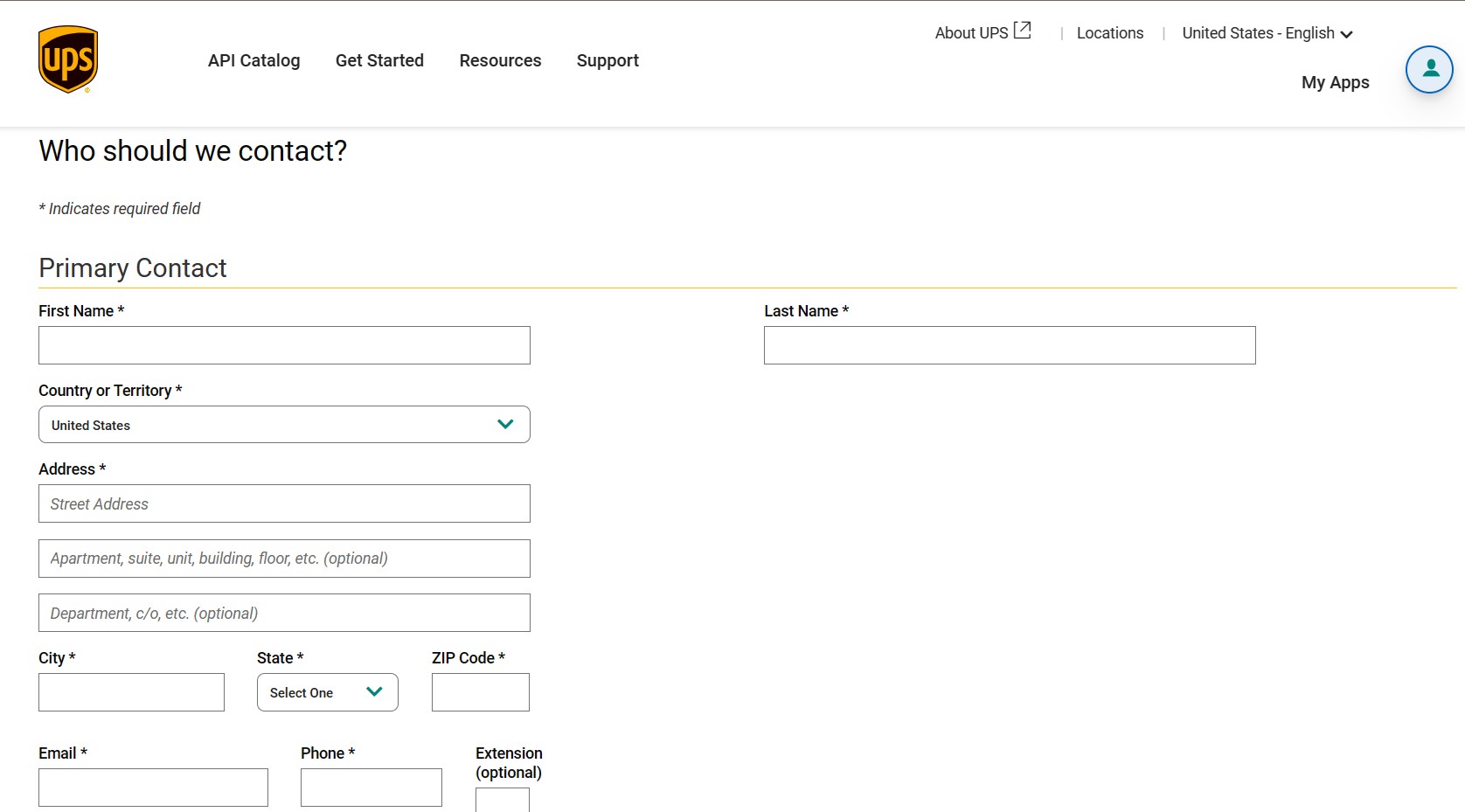
-
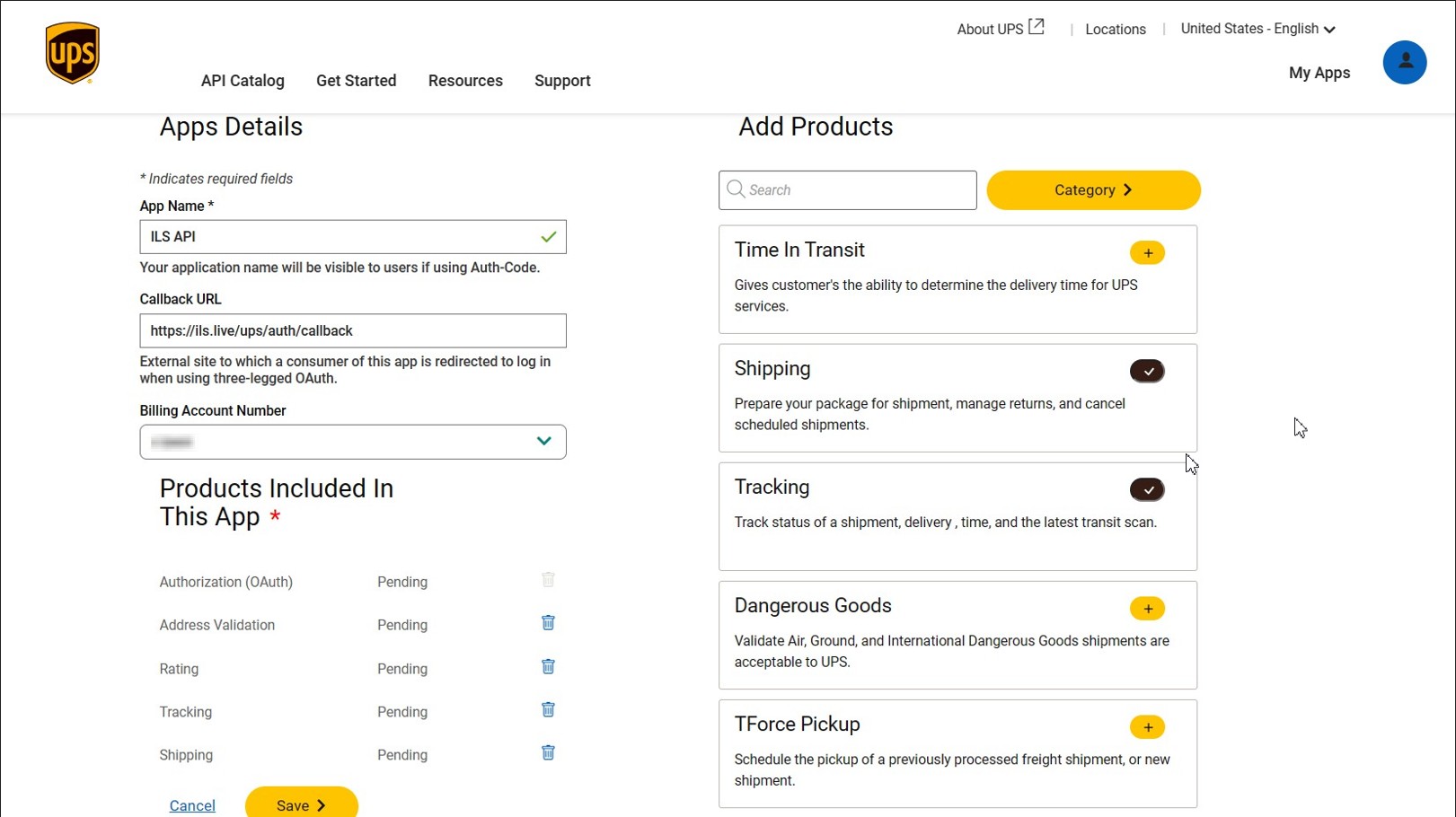
Add App Details and select the Required APIs from Add Products.
- App Name : ILS API
- Callback URL : https://ils.live/ups/auth/callback
- Billing Account Number : Choose the Billing Account Number from the dropdown.
- Products Included :
- Authorization (OAuth)
- Address Validation
- Rating
- Shipping
- Tracking
Modify API Products
After you create a custom app, you can modify the products linked to it. You need to select at least one API product for the app.
- Click the App you wish to modify.
- Click Add Products link to modify the API Selections.
- Click Save.
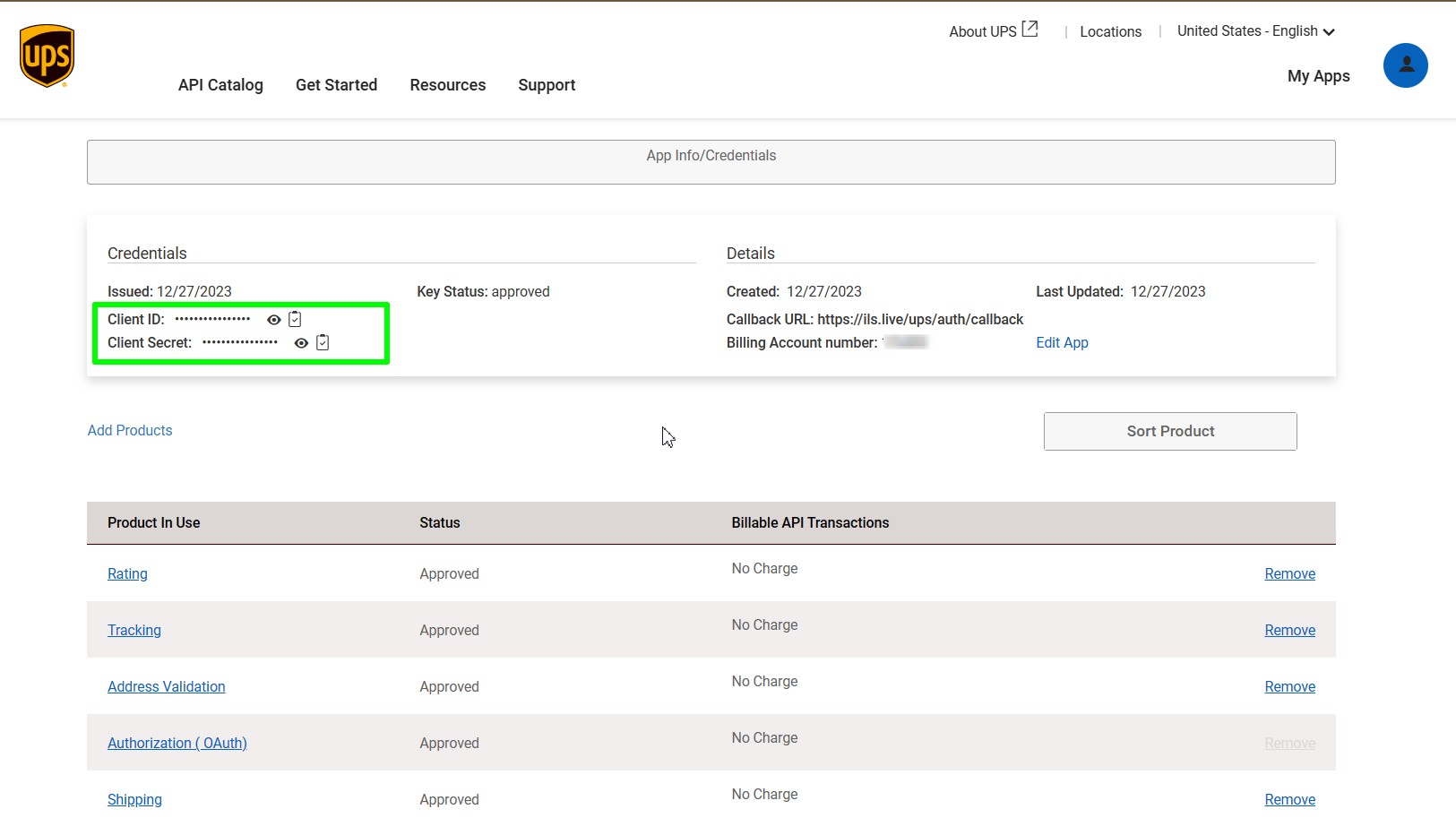
Get the API credentials for a custom app
You can check the the API key, and the API secret for a custom app from the app's API credentials page.
- Navigate to UPS Developer Portal.
- Click My Apps.
- Click the name of the app that you want the credentials for.
- In the App Info/Credentials page copy the client id and client secret by clicking icon.